
SportzX TV Installation Guides For Android, Android TV, Firestick & PC
Welcome to the official SportzX TV Installation Guides page. This section contains all the tutorials you need to download, install, and use SportzX TV APK on your favorite devices. Whether you’re using an Android smartphone, Android TV, Firestick, or Windows PC, you’ll find step-by-step instructions to get started quickly.
SportzX TV is designed to provide a simple and user-friendly experience. However, installation steps may vary depending on the device you use. That’s why we have created dedicated installation guides to help users install SportzX TV APK safely and easily.
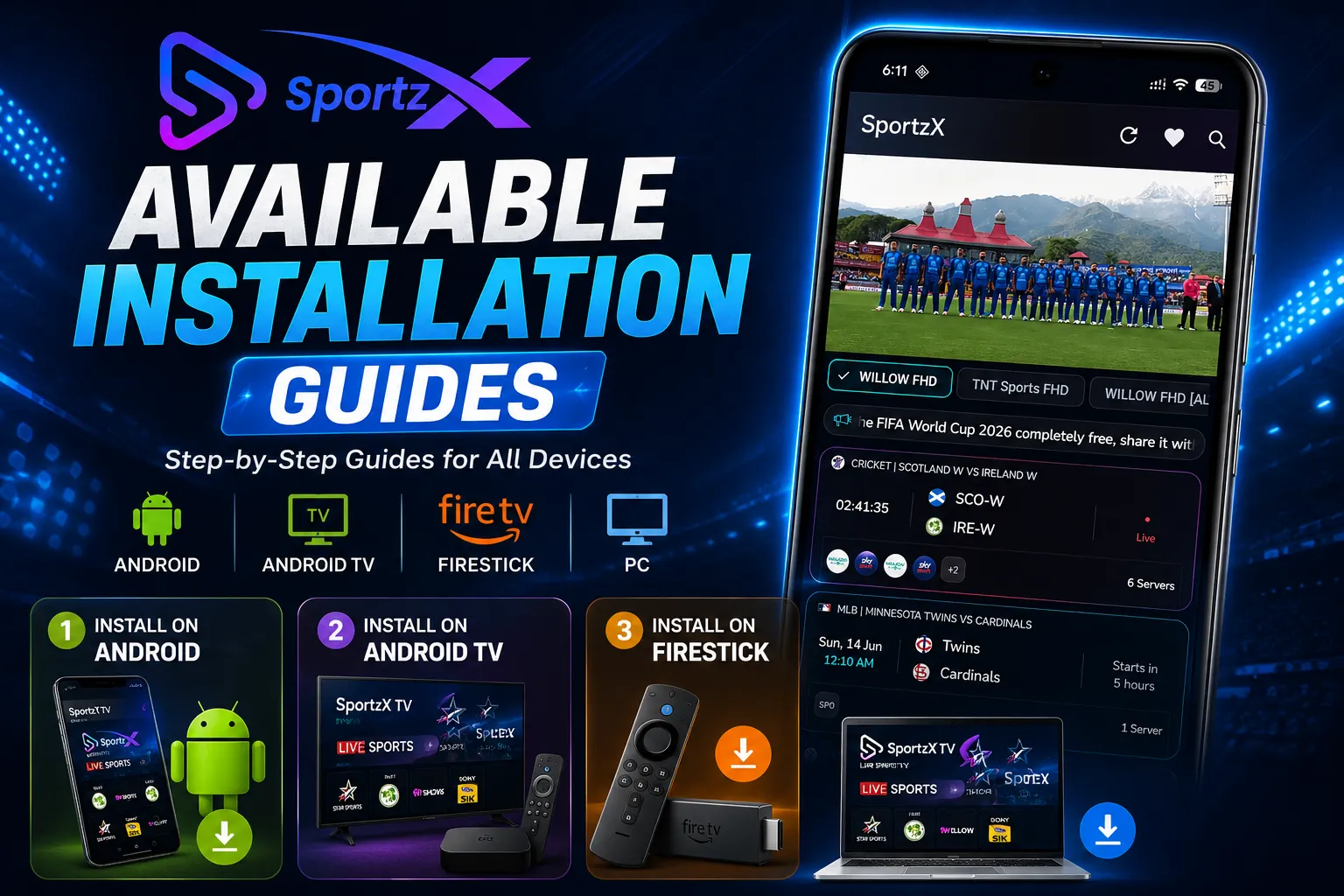
Available Installation Guides
How to Install SportzX TV APK on Android
Installing SportzX TV on Android smartphones and tablets is simple.
Android Installation Steps
- Download the latest SportzX TV APK.
- Enable installation from unknown sources.
- Open the APK file using your file manager.
- Tap Install.
- Wait for the installation to complete.
- Open SportzX TV and start using the application.
Android Requirements
- Android 5.0 or higher
- Stable internet connection
- Sufficient storage space
How to Download and Install SportzX TV APK
Before installing SportzX TV, you need to download the latest APK file from the official source.
Step 1: Download the Latest SportzX TV APK
- Visit the official SportzX TV website.
- Navigate to the Download section.
- Download the latest version of the SportzX TV APK file.
- Wait for the download to complete.
Step 2: Enable Unknown Sources
Since SportzX TV is installed using an APK file, Android devices require permission to install apps from unknown sources.
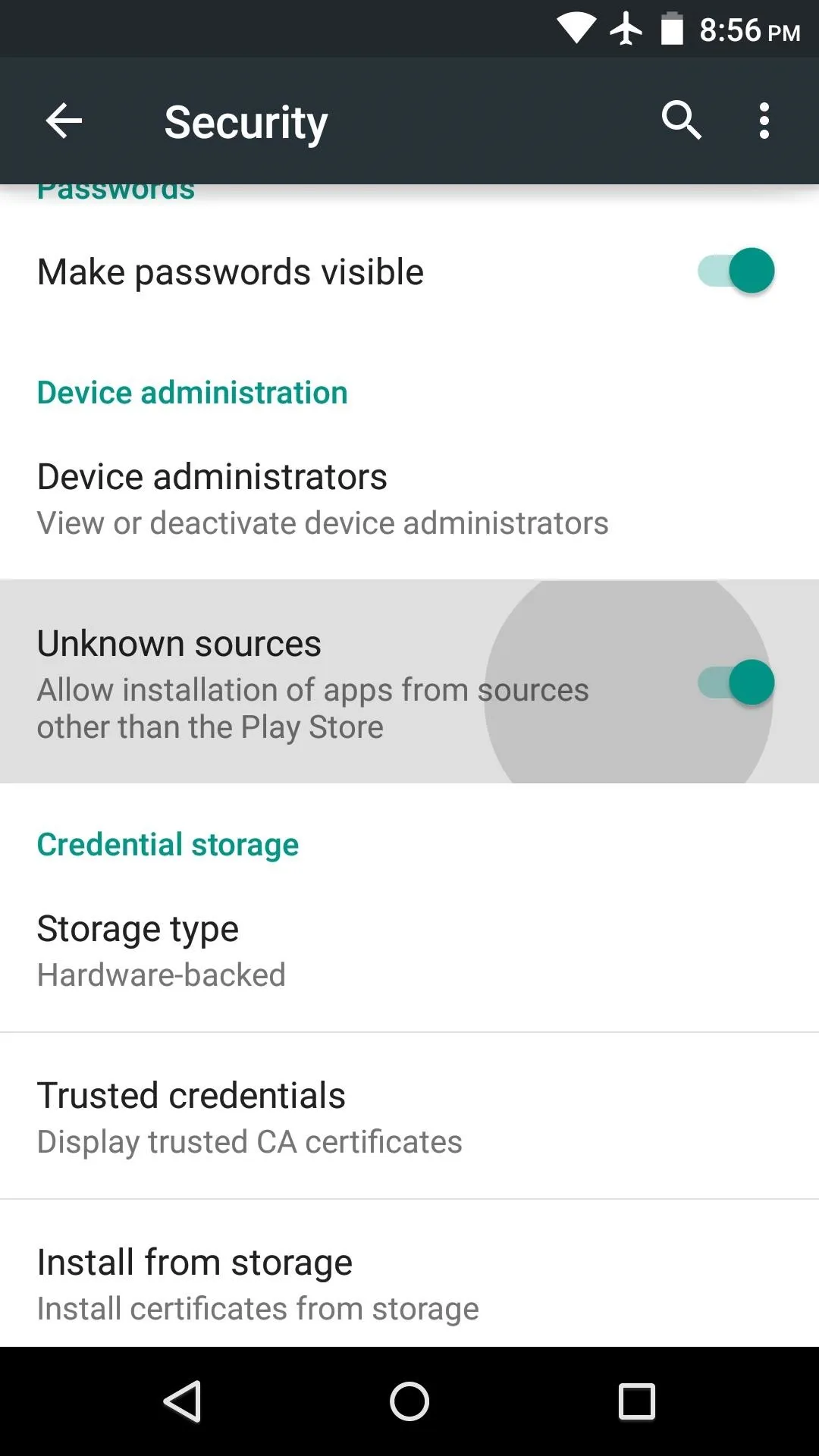
For Android Devices
- Open Settings.
- Go to Security or Privacy Settings.
- Enable Install Unknown Apps or Unknown Sources.
- Select your browser or file manager and allow installation permissions.
For Android TV
- Open Settings.
- Navigate to Device Preferences.
- Select Security & Restrictions.
- Enable installation from unknown sources for the required app.
Step 3: Install the APK
- Open the downloaded APK file.
- Tap Install.
- Wait for the installation process to finish.
- Launch SportzX TV and complete the initial setup.
How to Install SportzX TV on Android TV
Enjoy SportzX TV on a larger screen with Android TV.
Android TV Installation Steps
- Download the SportzX TV APK on your Android TV browser or transfer it using a USB drive.
- Enable Unknown Sources from Android TV settings.
- Open a file manager application.
- Locate the APK file.
- Select Install.
- Launch SportzX TV from the Apps section.
Benefits of Android TV Installation
- Bigger screen experience
- Easy navigation with remote control
- Better viewing comfort
How to Install SportzX TV on Firestick
Firestick users can install SportzX TV APK using the Downloader app.
Firestick Installation Steps
- Open the Amazon App Store.
- Install the Downloader application.
- Go to Settings > My Fire TV > Developer Options.
- Enable Install Unknown Apps.
- Open Downloader.
- Enter the SportzX TV APK download URL.
- Download the APK file.
- Select Install.
- Launch SportzX TV from the Apps section.
Firestick Requirements
- Amazon Firestick device
- Downloader application
- Internet connection
How to Install SportzX TV on PC
Windows users can run SportzX TV using Android emulators.
PC Installation Steps
- Download and install an Android emulator such as:
- Launch the emulator.
- Download the SportzX TV APK file.
- Drag and drop the APK into the emulator.
- Complete the installation process.
- Open SportzX TV and start using it on your PC.
Recommended PC Specifications
- Windows 10 or Windows 11
- Minimum 4GB RAM
- Stable internet connection
- Updated Android emulator
Why Choose Our SportzX TV Installation Guides?
Our installation tutorials are regularly updated to ensure compatibility with the latest devices and operating systems.
What You’ll Find in Every Guide
- Beginner-friendly instructions
- Updated installation methods
- Device-specific setup tutorials
- Troubleshooting tips
- Compatibility information
- Safe installation recommendations
Supported Devices
SportzX TV APK supports a wide range of devices, including:
- Android Smartphones
- Android Tablets
- Android TV
- Smart TVs with Android OS
- Amazon Firestick
- Fire TV Devices
- Windows PCs (Using Android Emulators)
Troubleshooting Installation Issues
APK Not Installing?
Try the following solutions:
- Verify that Unknown Sources is enabled.
- Download the latest APK version.
- Ensure sufficient storage space.
- Restart your device and try again.
App Not Opening?
- Clear app cache.
- Reinstall the latest APK version.
- Check device compatibility.
- Restart your device.
Download Failed?
- Check your internet connection.
- Use a different browser.
- Download the APK again from the official source.
Frequently Asked Questions
Is SportzX TV free to install?
Yes, SportzX TV APK can be downloaded and installed free on supported devices.
Which devices support SportzX TV?
SportzX TV works on Android phones, Android tablets, Android TV, Firestick, Fire TV devices, and Windows PCs through Android emulators.
Do I need Google Play Store to install SportzX TV?
No. SportzX TV is installed directly using the APK file and does not require a Google Play Store account.
How long does installation take?
Most users can complete the installation process within a few minutes.
Is SportzX TV compatible with Android TV?
Yes. SportzX TV is fully compatible with Android TV devices.
Can I install SportzX TV on Firestick?
Yes. Firestick users can install the APK using the Downloader application.
Final Words
The SportzX TV Installation Guides page is your complete resource for downloading, installing, and setting up SportzX TV APK on Android, Android TV, Firestick, and PC. Follow the device-specific tutorials above to complete the installation quickly and safely.
We continuously update our guides to ensure they remain compatible with the latest Android versions, Firestick updates, Android TV systems, and Windows environments. Choose your device, follow the instructions, and enjoy a smooth SportzX TV experience today.